The 9 Best Employee Scheduling Software Options For Growing Businesses

Managing employee schedules by hand can get messy fast. You’re checking availability, filling open shifts, and chasing down employees when plans change. The best employee scheduling software simplifies that work by building shifts around availability and sending changes straight to your team’s phones.
You can save up to 15 hours a week on scheduling and reduce no-shows with the right staff scheduling software. When I Work reports these benefits for managers using scheduling tools. Here’s how nine options stack up, from free plans to the features worth paying for.
How the top 9 employee scheduling software tools compare
Most employee scheduling software covers the same core features: a schedule builder, a mobile app, open shifts, and time-off requests. Where tools differ is price, how features are split across plans, and the kinds of businesses they’re built for.
To build this list, we compared each platform on the factors managers care about most:
| Best for | Who it’s not for | Key features | Pricing | |
| 1. When I Work | Hourly, shift-based teams across industries | Salaried teams with fixed, non-shift schedules | Automatic scheduling, shift swaps and pickups, team messaging | $2.50 per user per month (single location); $5 per user per month (multi-location) |
| 2. Homebase | Businesses that want a free starting point | Multi-location businesses that want payroll and HR tools in one base price | AI scheduling help, time-off tracking, payroll add-on | Free for one location with up to ten employees; paid plans from $30 per location per month billed monthly |
| 3. Deputy | Teams that need labor law compliance tools | Budget-conscious teams that want a free plan | Automatic scheduling, sales-based staffing, face ID clock-in | $5.50 per user per month, billed monthly |
| 4. 7shifts | Restaurants | Non-restaurant businesses like retail stores and clinics | Sales-based scheduling, tip pooling, manager shift notes | Free for one location with up to 15 employees; paid plans from $44.99 per location per month |
| 5. Connecteam | Deskless and field teams that want one all-purpose app | Teams that only need a simple schedule builder | GPS clock-in, job checklists, team chat | Free for up to ten users; paid plans from $35 per month for the first 30 users, billed monthly |
| 6. Sling | Budget-conscious teams and Toast restaurants | Teams that want time tracking and attendance tools for free | Shift scheduling, labor cost tracking, team messaging | Free for up to 30 users; paid plans from $2 per user per month, billed monthly |
| 7. ZoomShift | Teams that want simple scheduling and a time clock | Teams that want HR, payroll, or team chat in the same app | Shift templates, mobile time clock, seasonal pause | Free for up to 20 users; paid plans from $2.50 per user per month, billed monthly |
| 8. UKG Shiftboard | 24/7 operations in manufacturing and energy | Small businesses that want transparent, self-serve pricing | Fatigue limits, union rule tracking, production-based staffing | Custom quote |
| 9. Buddy Punch | Teams that need time tracking first | Scheduling-first teams, since the schedule builder starts on Pro | GPS clock-in, PTO tracking, break tracking | $4.99 per user per month plus a $19 monthly base fee |
1. When I Work
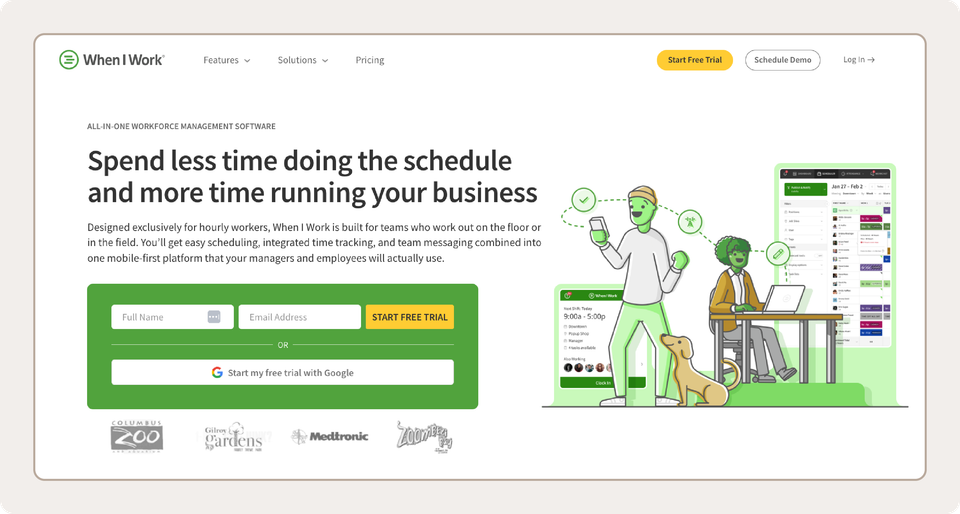
When I Work is best for shift-based workplaces like restaurants, retail stores, healthcare teams, and hotels. For example, hotels can manage front-desk, kitchen, and housekeeping shifts in one place. Restaurants can schedule servers, cooks, and hosts by role and fill a dinner-rush call-out from their phone.
The platform is a strong fit overall if you manage hourly employees and you’re still scheduling by hand or outgrowing a basic tool. You can build schedules, track time, and message your team in one place, while employees set their availability and grab open shifts from their phones.
More than 200,000 workplaces run their teams on When I Work. The platform is designed for both managers and hourly employees, and it earns strong ratings from the people who use it every day. On Capterra and G2, it scores 4.5 and 4.4 out of 5, respectively.
“Being able to build schedules, see staff availability, post open shifts, manage shift drops, and communicate schedule changes saves a lot of time. I also really like that staff can pick up available shifts themselves, especially when we have last-minute openings or extra shifts available.”—Brie B., Recreational Program Director, G2
Key features
- Auto Scheduling: Managers set the required staffing levels for each shift, and the system automatically fills shifts with available, qualified employees. Managers can also save busy weeks as templates and reuse them.
- OpenShifts and shift trades: Employees can pick up or trade shifts in the app, and you approve each change before it’s final.
- Overtime alerts and labor costs: The app warns you when a shift would push someone into overtime, giving you time to reduce overtime before the schedule goes out.
- Team Messaging: You can message one person, a department, or the whole team without sharing personal phone numbers.
- Time clock: Employees clock in from a phone, tablet or computer, and approved hours sync to payroll through integrations like Rippling. When I Work customers can also get six months of Rippling free, subject to the offer’s terms.
Pricing
You pay per user each month on both plans. Single-location teams start on the single location or schedule plan at $2.50, and businesses with more than one location start on the multiple locations or schedules plan for $5. Every plan comes with a 14-day free trial, and you don’t need a credit card to start it.
- Single location or schedule ($2.50): This plan includes unlimited users, Auto Scheduling, schedule templates, Team Messaging, OpenShifts, and payroll integrations.
- Multiple locations or schedules ($5): Adds scheduling rules, role permissions, labor sharing, custom reporting, and a toggle for switching between time zones.
- Schedule a demo if you need API keys, webhooks, and SAML/SSO on top of everything in the multiple locations and schedules plan.
2. Homebase
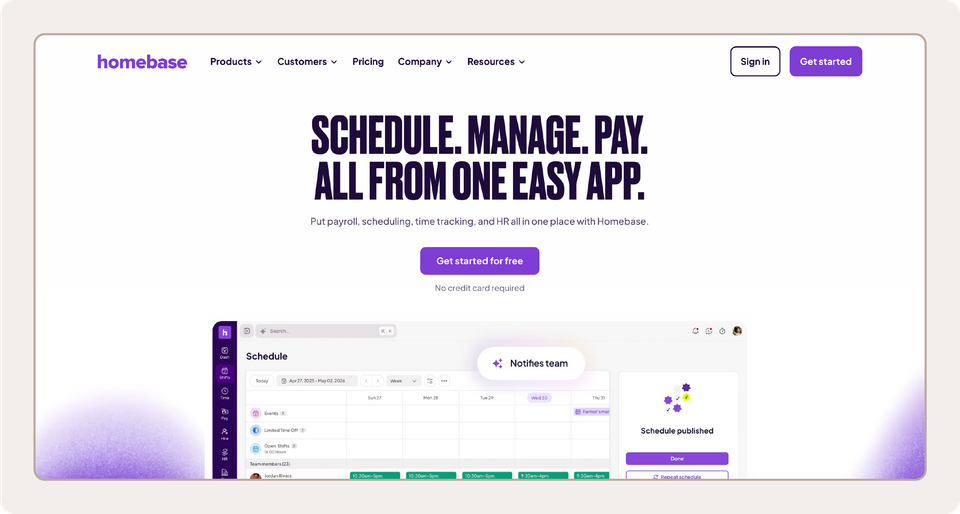
Homebase is best for single-location businesses that want scheduling, time tracking, and HR tools from one provider. The company built its app for local, hourly teams and lets owners add hiring, payroll, and tip tools as they need them.
Homebase lets you add payroll, time tracking and other tools as your business needs them. You purchase these tools separately, so the total cost depends on the features you need. Homebase has a 4.6 out of 5 rating on G2 from 605 reviews.
Key features
- Free Basic plan: One location with up to ten employees gets a weekly schedule builder and time tracking for $0.
- AI Scheduling Assistant: Starting on the Plus plan, Homebase offers an AI assistant that helps put schedules together.
- Time-off and PTO controls: Employees can submit availability and time-off requests on paid plans, and Plus adds PTO policies that track accruals.
- Add-ons: You purchase payroll, tip pooling, task lists and hiring tools separately, each at its own price.
Pricing
Basic stays free for one location. After that, you pay per location each month: $30 for Essentials, $70 for Plus, or $120 for All-in-One. Annual billing drops those to $24, $56, and $96. Payroll runs $49 per month plus $6 per employee you pay, and you can test the All-in-One plan free for 14 days.
3. Deputy
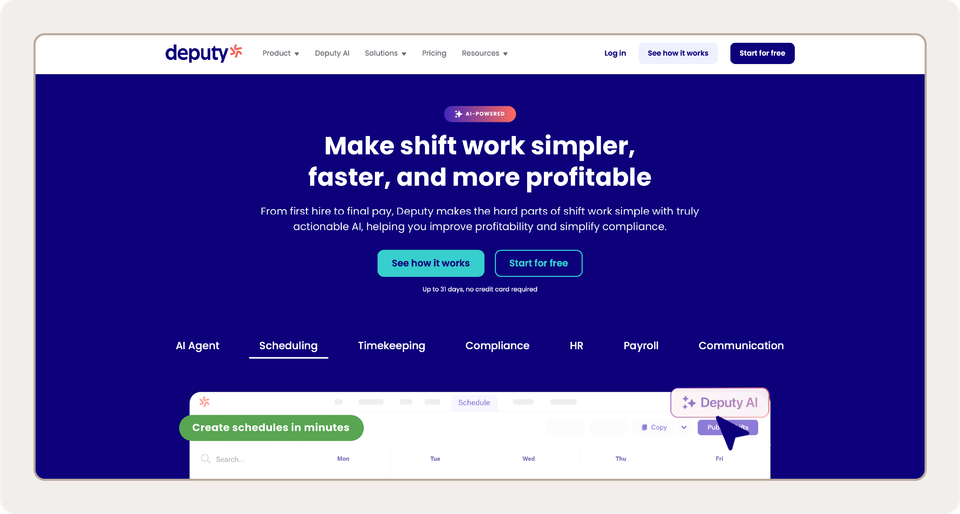
Deputy is best for teams that schedule under strict state or city labor rules and want compliance checks built into every schedule. The company serves hourly workplaces in hospitality, retail, healthcare, and other industries, and every plan includes Deputy AI to help draft schedules and answer workforce questions.
Deputy also offers payroll through a partnership with Paycor, so teams can connect employee schedules and hours with payroll processing without managing those workflows separately. This can be useful for businesses that want scheduling and payroll to work together while keeping each system focused on its core function. On G2, Deputy has a 4.6 out of 5 rating based on 666 reviews.
Key features
- Auto-scheduling: Core and Pro can build a schedule for you by matching open shifts with who’s available and what the business needs that day.
- Demand forecasting and labor budgets: You can set staffing levels against projected sales and a wage budget to see costs before you publish.
- Labor law compliance: Every plan has basic compliance checks, and Core and Pro add more advanced rules.
- Time clock options: Workers clock in from a tablet, phone, computer, or even a watch. Geofencing and face-unlock kiosks make it harder for one employee to punch in for another.
Pricing
Deputy charges $5.50 per user each month for Lite, $7.25 for Core, and $10 for Pro, with slightly lower rates if you pay annually.
4. 7shifts
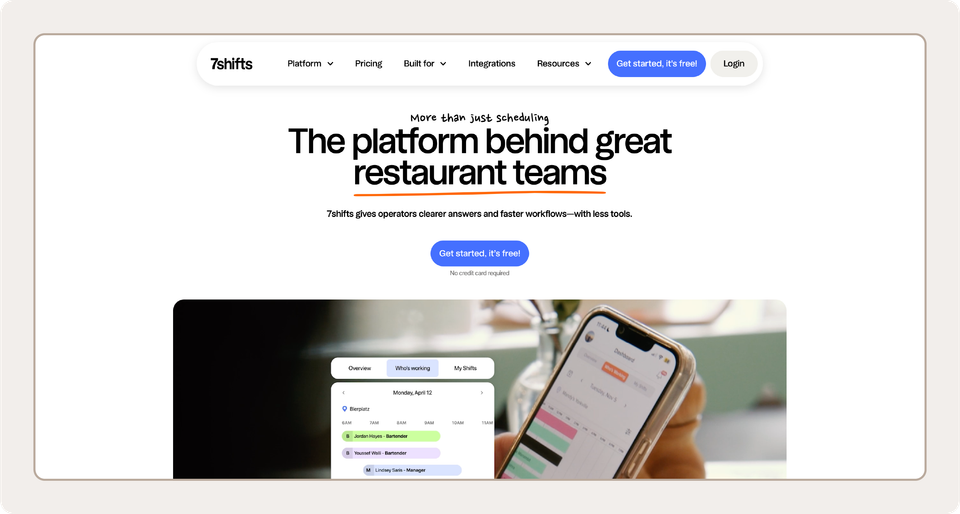
7shifts is best for restaurants, from single cafes to multi-unit groups. 7shifts builds its platform specifically for food service, with scheduling, time clock, tip and payroll tools designed around how front-of-house and kitchen teams work.
Because the product focuses on restaurant workflows, other workplaces such as retail stores and clinics may want staff scheduling software designed for a broader range of industries. G2 reviewers rate 7shifts 4.5 out of 5 across 129 reviews.
Key features
- Sales-based scheduling: Projected sales from your POS feed into labor targets, which helps you staff up for a Friday dinner rush and trim a slow Monday lunch.
- Tip management: Tip pools are calculated and paid out through 7shifts on the Essentials plan and above, so managers don’t have to split tips in a spreadsheet.
- Manager log book: Managers jot down what happened during their shift, and whoever comes in next reads it before service starts.
- Labor compliance tools: Pro and Premium track breaks, overtime, and local labor rules.
Pricing
You pay per location instead of per employee. A single location with 15 or fewer employees can stay on the free plan. Essentials costs $44.99 per location per month for up to 30 employees. Pro runs $89.99 per location per month and covers up to 60 employees, while Premium is $149.99 per location per month with no cap on headcount. A free trial lets you test a paid plan first.
5. Connecteam
Connecteam is best for deskless crews, such as construction teams, cleaning companies, field service techs, and retail staff, who need one app for both scheduling and daily operations. The company organizes its product into three hubs: Operations, Communications, and HR and Skills.
Teams can start with the hub they need most and add others later, keeping training, onboarding, and company updates in the same app as the schedule. Across more than 3,500 G2 reviews, Connecteam averages 4.6 out of 5.
Key features
- GPS time clock: Employees punch in from their phones, and their location is recorded. Geofences around job sites can be set on higher plans.
- Job scheduling: Open shifts are available on every plan. Advanced brings repeating shifts and templates, and Expert can assign shifts automatically.
- Forms and checklists: Managers can attach custom forms, safety checklists, and task lists to each job.
- Free plan: A team of ten or fewer gets every hub without paying.
Pricing
Beyond ten users, each hub has a flat monthly price for your first 30 users, plus a fee per extra user. The Operations Hub, which includes scheduling, costs $35 (Basic), $59 (Advanced), or $199 (Expert) per month on monthly billing. Yearly billing is less expensive; Enterprise pricing is custom, and there’s a 14-day free trial with no credit card required.
6. Sling
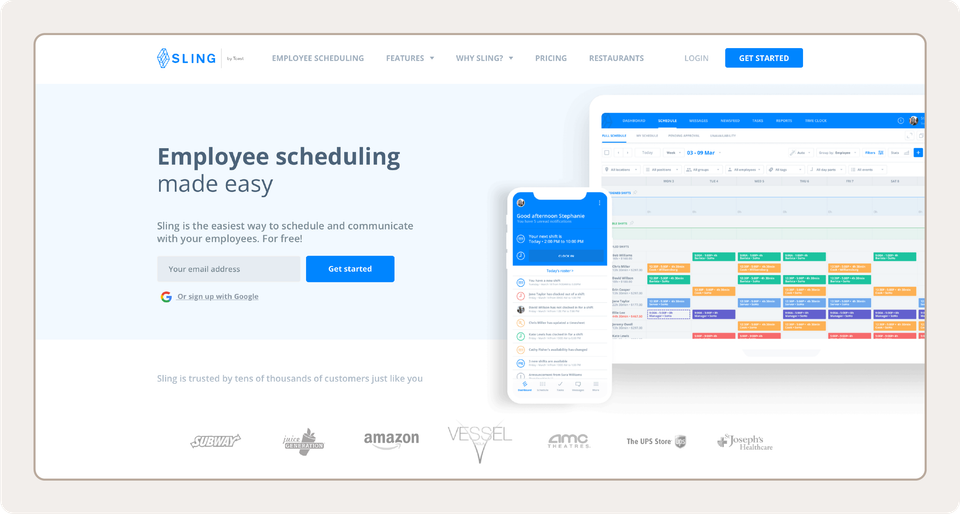
Sling is best for teams that want straightforward scheduling and team messaging, especially restaurants already using Toast. Toast acquired Sling in July 2022 and rebranded it as Sling by Toast. Today, Sling integrates with Toast to sync employee, scheduling and operational data between the platforms.
That connection lets Toast restaurants keep scheduling with the same company that runs their POS.
Sling has a 4.4 out of 5 rating on G2, based on 88 reviews.
Key features
- Free scheduling plan: Teams of up to 30 users can build schedules months ahead, post available shifts, and approve time off at no cost.
- Labor cost management: On Premium and up, you can compare labor costs against sales and track overtime as you build the schedule.
- Time tracking: Employees can clock in from a phone on Premium or from a shared kiosk device on Business.
- Attendance tools: The Business plan tracks no-shows, sick call-outs, and PTO.
Pricing
The free plan covers up to 30 users, and paid plans start at $2 per user per month for Premium ($1.70 billed annually). Business costs $4 per user per month ($3.40 billed annually). Paid plans come with a 15-day free trial.
7. ZoomShift
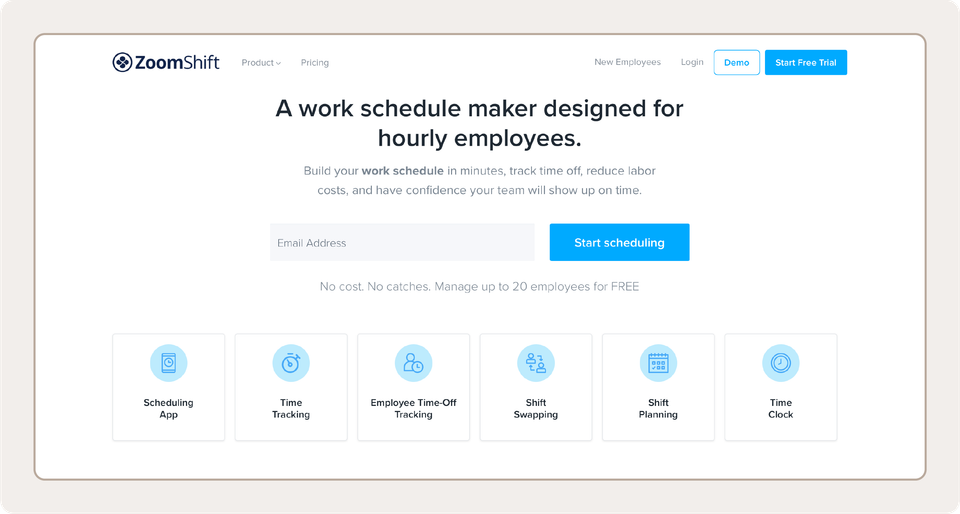
ZoomShift is best for teams that want core scheduling and time tracking in one straightforward tool. The company keeps its product focused on those two jobs, and its Premium plan includes personalized onboarding and help migrating from another tool.
That hands-on setup support can make switching easier for teams leaving spreadsheets or an older app. ZoomShift holds a 4.8 out of 5 rating on G2, based on 46 reviews.
Key features
- Free Essentials plan: You can schedule up to 20 users up to two weeks in advance, with reminders and shift confirmations included.
- Templates, swaps, and timesheets: The Starter plan adds shift templates, availability, shift cover requests, a time clock, and payroll reports.
- Auto-scheduling and overtime warnings: The Premium plan adds automation, geofenced clock-ins, and limits on early or late clock-ins.
- Seasonal pause: Seasonal teams can pause their subscription when they don’t need it and pick up right where they left off.
Pricing
Pricing is set per active team member per month. Essentials is offered free for up to 20 users. Starter costs $2.50 per user per month ($2 billed annually), and Premium costs $5 per user per month ($4 billed annually). A 14-day free trial is included with every plan without requiring a credit card.
8. UKG Shiftboard
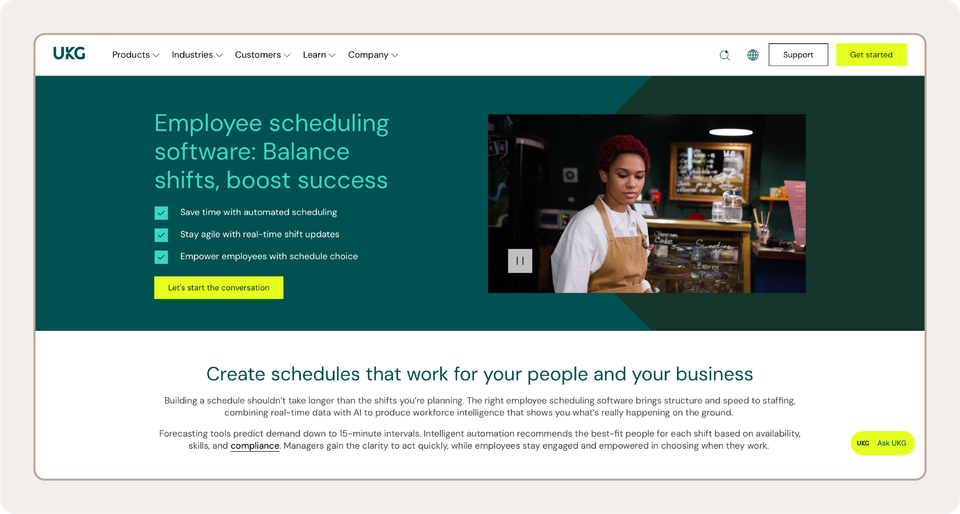
UKG Shiftboard is best for high-compliance, 24/7 operations in industries like manufacturing and energy. UKG acquired Shiftboard in May 2025, and the scheduling software now sits alongside UKG’s HR, payroll and workforce management products.
Every shift assignment can be audited, according to UKG, which matters for operations that answer to labor regulators or union agreements. Shiftboard’s products average 4.6 out of 5 across 60 G2 reviews, most of them for ScheduleFlex, its workforce scheduling platform for complex, around-the-clock operations.
Key features
- Fatigue management: Scheduling rules limit long stretches of shifts to keep workers safe and rested.
- Union and compliance rules: Schedules can follow union agreements and industry regulations.
- Labor planning: Planners can match staffing to production demand across shifts, crews, and sites.
- Enterprise integrations: As a UKG product, UKG Shiftboard integrates with UKG’s HR and payroll tools and with systems such as Workday, SAP and ADP.
Pricing
UKG doesn’t publish pricing for UKG Shiftboard, so you’ll need to request a demo and a custom quote.
9. Buddy Punch
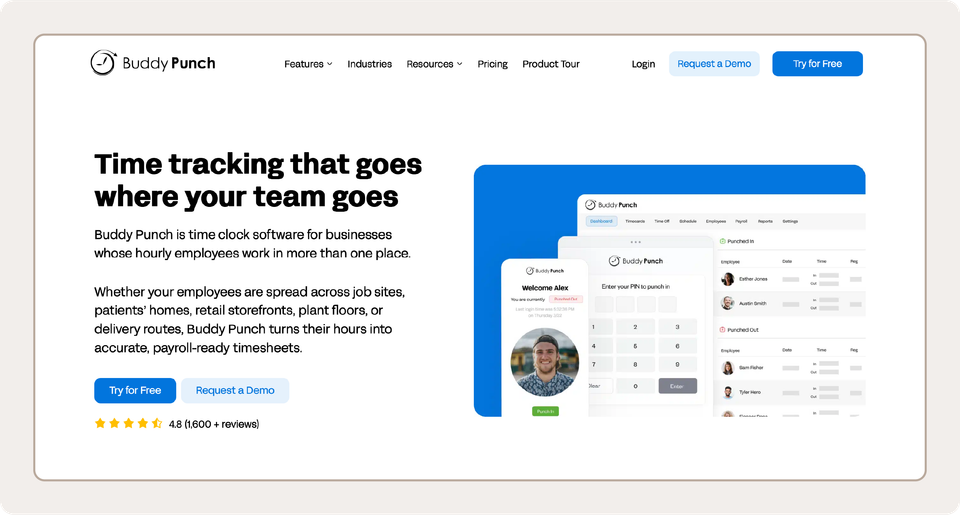
Buddy Punch is best for teams whose top priority is accurate time tracking, with scheduling as a second need. The company built its product around the time clock, with clock-in options like GPS, QR codes, kiosks, and photo checks.
The platform also offers built-in payroll, so hours and pay can stay with one provider. On G2, Buddy Punch averages 4.8 out of 5 from 405 reviews.
Key features
- GPS and geofencing: Every punch captures location, and the Pro plan can limit punches to approved job sites.
- PTO and time-off tracking: You can manage vacation and sick requests and track balances online.
- Break compliance: Pro and higher plans track meal and rest breaks, waivers, and premium pay.
- Drag-and-drop scheduling: The Pro and Advanced plans include a drag-and-drop schedule builder.
Pricing
Every Buddy Punch plan has a $19 monthly base fee, plus a charge per user: $4.99 for Starter, $6.99 for Pro, or $12.99 for Advanced when billed monthly.
How to choose employee scheduling software for your team
Before you sign up for trials, run each option through these four checks.
1. Match the software to your team size and work model
Start with headcount, number of locations, and how complicated your shifts get. A cafe with 12 employees and one opening shift has very different needs from a home care agency handling night-shift scheduling around the clock.
Whatever your setup, look for employee shift scheduling software designed to handle your specific business needs.
2. Compare scheduling and shift management features
Across industries, most managers need the same core scheduling features:
- Shift creation and editing
- Employee availability
- Shift swaps and open shifts
- Time-off requests
- Schedule notifications
When comparing tools, look at how much of this work each platform automates. Auto-scheduling can build shifts around availability and staffing needs, while overtime alerts can flag potential issues before a manager creates an expensive or noncompliant schedule. These features matter most when you’re short-staffed or managing frequent schedule changes.
3. Check integrations with your existing tools
Retyping timesheets on payday wastes hours and invites mistakes. Before you commit, check whether the software connects directly to the payroll and point-of-sale (POS) systems you already use, whether approved hours sync automatically or require a manual export, and whether details like pay rates and new hires flow both ways.
If you’re also shopping for payroll, look for a scheduling tool that pairs with a full HR and payroll platform, the way When I Work does with Rippling. During your free trial, run one test pay period to see how clean the handoff really is.
4. Evaluate pricing as your team grows
Pricing can look manageable when your team is small and change significantly as you add employees or locations. Before choosing a plan, compare how the pricing model scales with your headcount, locations and scheduling needs. A per-user plan may become more expensive as your team grows, while a per-location plan may change more significantly when you open another store.
Run the numbers for where you expect to be in a year, check which plan the features you need actually sit on, and include add-ons like payroll or time tracking. Then add that total to your labor budget and use the free trial to confirm the plan you can afford does the job.
Manage shifts and schedules in one place
The best employee scheduling software is the one that makes the messy parts of your week easier to handle. When I Work is an all-around choice for hourly, shift-based teams, built around flexibility and employee self-service. Employees can pick up open shifts and trade with coworkers from their phones while you keep final approval. The same app can grow with you into time tracking, multiple locations and payroll through Rippling.
Compare employee scheduling plans and share schedules in minutes, adjust them in seconds, and keep every shift covered.
FAQ
What’s the best scheduling software for employees?
The answer depends on your industry and how you staff shifts. When I Work is built for hourly teams in restaurants, retail, healthcare, and similar workplaces, with Auto Scheduling and employee self-service on every plan. Restaurant-only operators might also consider 7shifts, and round-the-clock manufacturing and energy sites might look at UKG Shiftboard.
What’s the most used scheduling software?
No independent ranking measures usage across every tool. When I Work reports more than 200,000 workplaces on its platform, and that 1 in 10 employees have used it. Homebase, Deputy, Connecteam, and Sling are other names you’ll see often in this category.
What are the top 10 job scheduling tools?
Some of the most widely used employee scheduling tools are When I Work, Homebase, Deputy, 7shifts, Connecteam, Sling, ZoomShift, UKG Shiftboard, and Buddy Punch. Each one covers the basics, so the best pick comes down to your industry, team setup, and budget.
What’s the most effective scheduling method?
For most hourly teams, the best results come from combining a base schedule template with employee input. Managers can build the template around their busiest hours, account for employee availability and let employees swap or claim open shifts when plans change. Employee scheduling software can automate these repetitive tasks and send notifications to the team as schedules are updated.
What’s the best way to schedule employee shifts?
Start by determining how many people you need for each part of the day, then assign employees based on availability and required skills. Track weekly hours as you build the schedule to avoid unexpected overtime. Post schedules early so employees have time to plan, and keep swaps and schedule updates in the same app so everyone works from the latest version.